
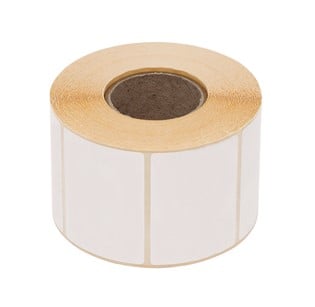
Address stickers, folder labels and product labels can be designed with a suitable template. The right label material, the exact sheet dimensions and a test pressure are decisive. A laser or inkjet printer is sufficient if the labels are specifically suitable for the respective device.
Create labels in Word
- Open a new document in the desktop version of Microsoft Word.
- Select Shipments → Labels and enter the desired text.
- Open the options. Select the label manufacturer and the product number of your bow.
- If the product is not stored, create a new label format with the dimensions on the packaging.
- Choose whether to print a single label or a whole page with the same content. For different contents, create a label document and edit the fields individually.
The terms may vary slightly depending on the Word version. The Microsoft Support describes the corresponding functions. For larger address lists, a series print is worthwhile; personal data should only be taken over from a legitimate and current data source.
Distinguishing width, height and division
Not only measure the individual label. The margins, the number of labels per line and the distances must also be correct. The vertical division indicates the distance between the upper edges of two labels. It consists of label height and space. Accordingly, the horizontal division results from width and interspace.
A label containing: 40 mm Height and 50 mm The width of each 2 mm distance to the next label, requires a vertical division of 42 mm and a horizontal division of 52 mm. Apply the values of the manufacturer’s specifications; a supposed standard dimension does not automatically match every bow.
This is how the first expression succeeds
- Check whether the sheet is approved for laser or inkjet printing. Unsuitable material can dissolve in the device.
- First print on ordinary paper and hold the printout behind the label sheet against the light.
- Choose the actual size or 100 Percentage. Automatic adjustment to the side can move the positions.
- Set the recommended media type in the printer driver and note the feed direction.
- Check a real label sheet before printing a larger amount. Do not use damaged or partially replaced arches again if the device manufacturer does not.
Which labels fit which use?
Paper labels are suitable for many addresses and shelves. Material and adhesives shall be separately suitable for moisture, cold or permanent labelling. Thermolabels belong in a suitable thermoprinter and are not a replacement for printer sheets. For food containers, a decorative label does not automatically mean that the material is approved for direct food contact.
A printout on normal paper can also serve as shipping information. Attach it so that the font and barcode remain legible; a suitable document bag protects against abrasion. Avoid reflective tape over the barcode. For regularly recurring tasks, a correctly stored template saves time and reduces false sheets.
Comments
No comments yet. Share your experiences on this topic.